Expire a Badge
Badges can optionally be configured with expiration periods (see Edit Badge Properties for more information). In addition, you can manually expire a Badge from the Member Details screen.
Note: You can also expire a Badge from the Badge Members screen, the Member Profile screen, or the Badge Details screen.
To manually expire a Badge from the Member Details screen:
-
Select Members from the top navigation bar, then select Members > Members from the side navigation menu. The Members screen is displayed.
-
On the Members screen, search for and select the desired Member (see Search for a Member for more information). The Member Details screen is displayed with the Metrics tab selected by default.
-
Select the Badges tab.
-
Optionally, search for the desired Badge. See Member Details Tab Overview - Badges for more details on the available search options.
-
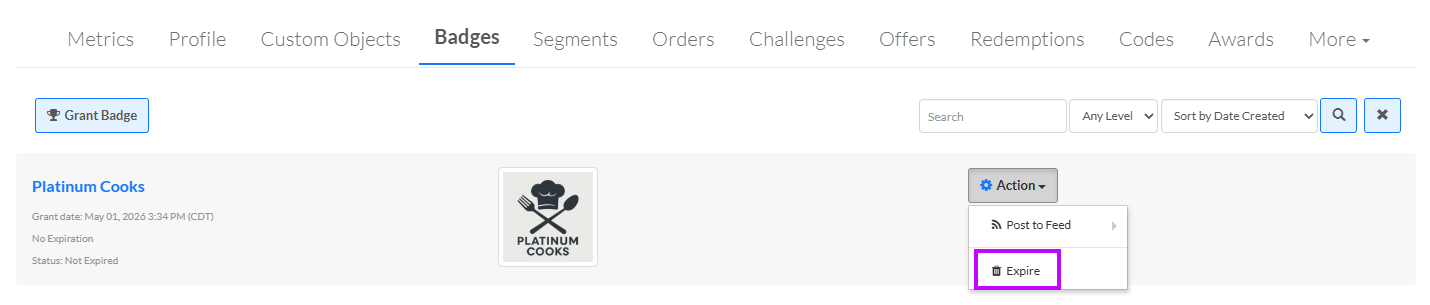
Next to the desired Badge, from the Action drop-down menu, select Expire. A confirmation dialog box is displayed; click Confirm.